
Amazon eero 7 Review: Easy Wi-Fi 7 Mesh That Fixed Our Bedroom Wi-Fi
Our Amazon eero 7 review after a week at home. Set-up took about 20 minutes, the units feel premium, the app is great, and video calls and YouTube in the bedroom went from patchy to smooth.
 By Laurence Deer
On this page
Amazon sent us the eero 7 to review. They didn’t see this review before it went live.
Our old Wi-Fi was fine near the router and less reliable further away. Video calls would blip, and YouTube in the bedroom wasn’t as smooth as it should be. The router was an older TP-Link Archer VR400, an AC1200 (Wi-Fi 5) modem-router.
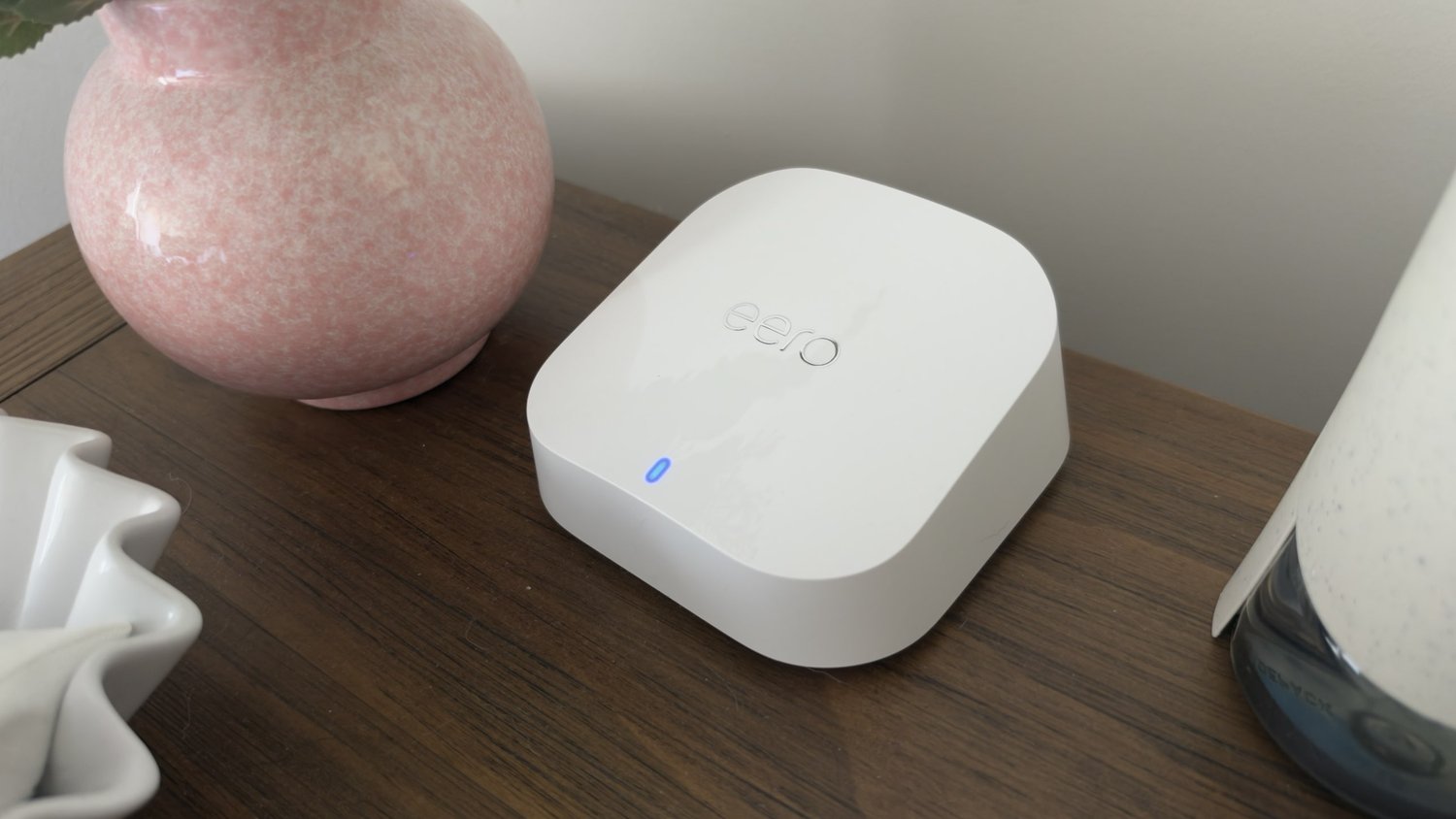
The eero 7 is Amazon’s cheapest Wi-Fi 7 mesh system: small units that you spread around the house so the signal doesn’t have to punch through every wall from one corner. We set up two of them and have used them for a week. In short, set-up was easy, the units feel well made, the app is great, and the problems we wanted to fix have gone.
What’s in the box
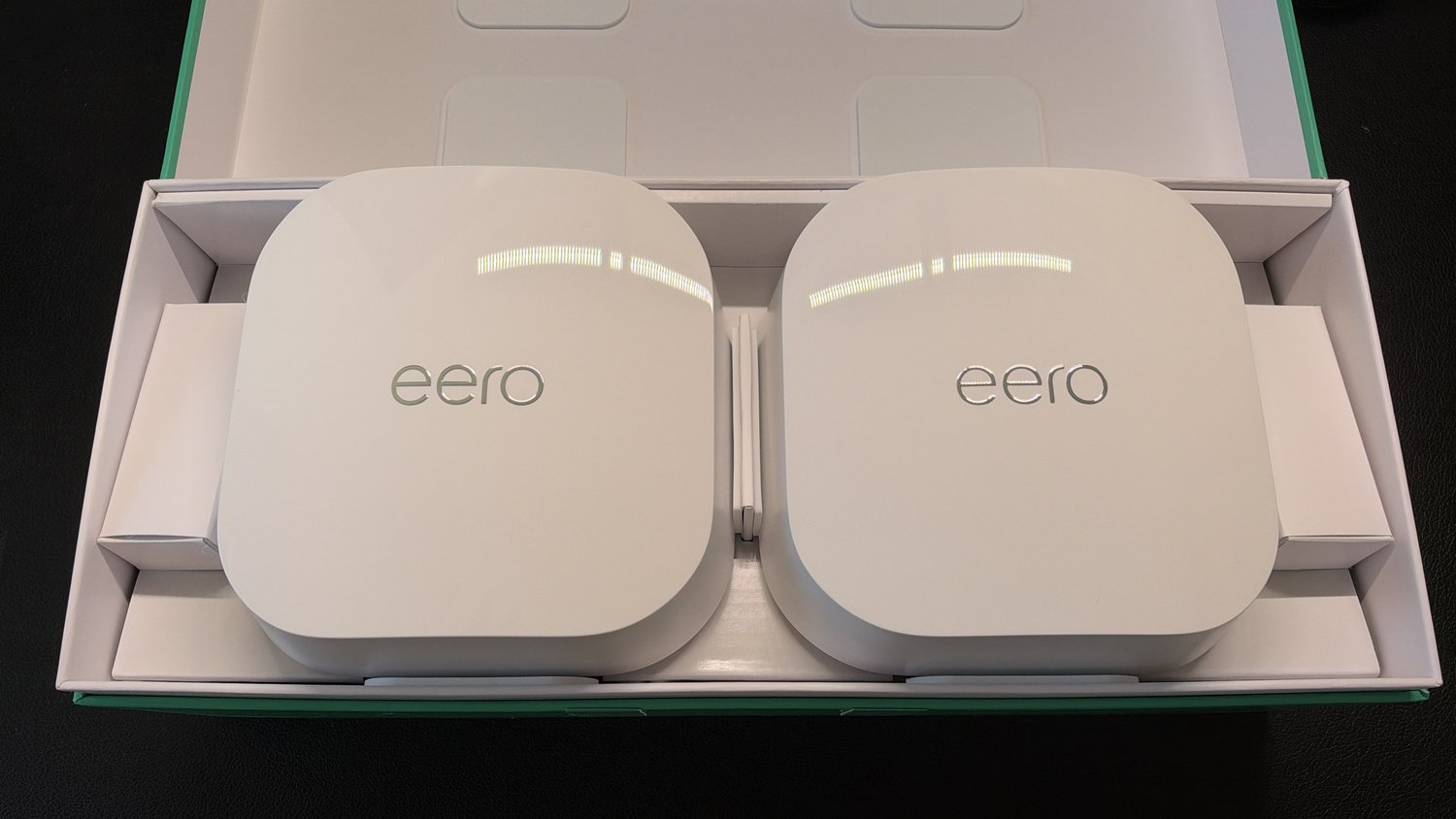
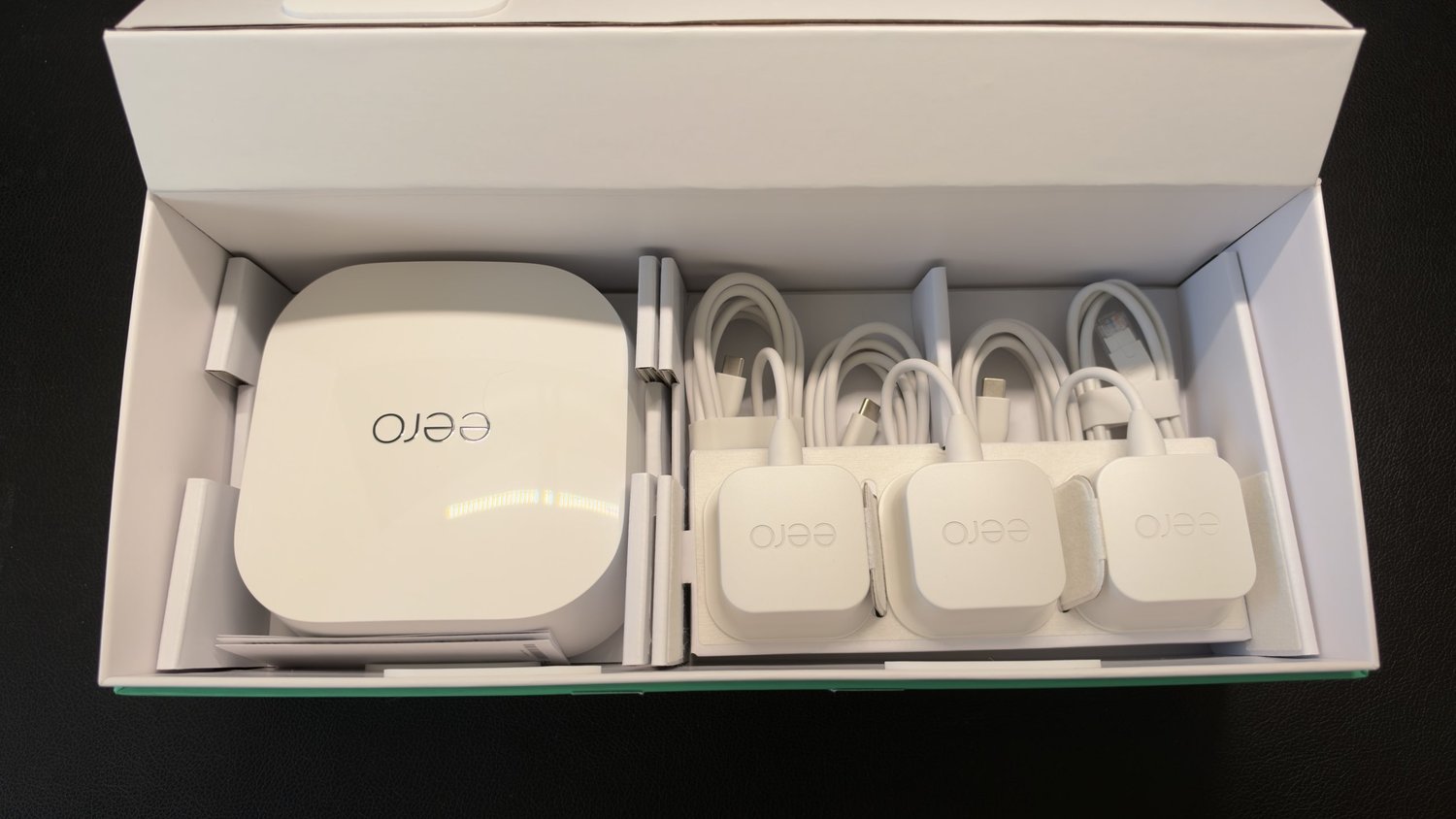
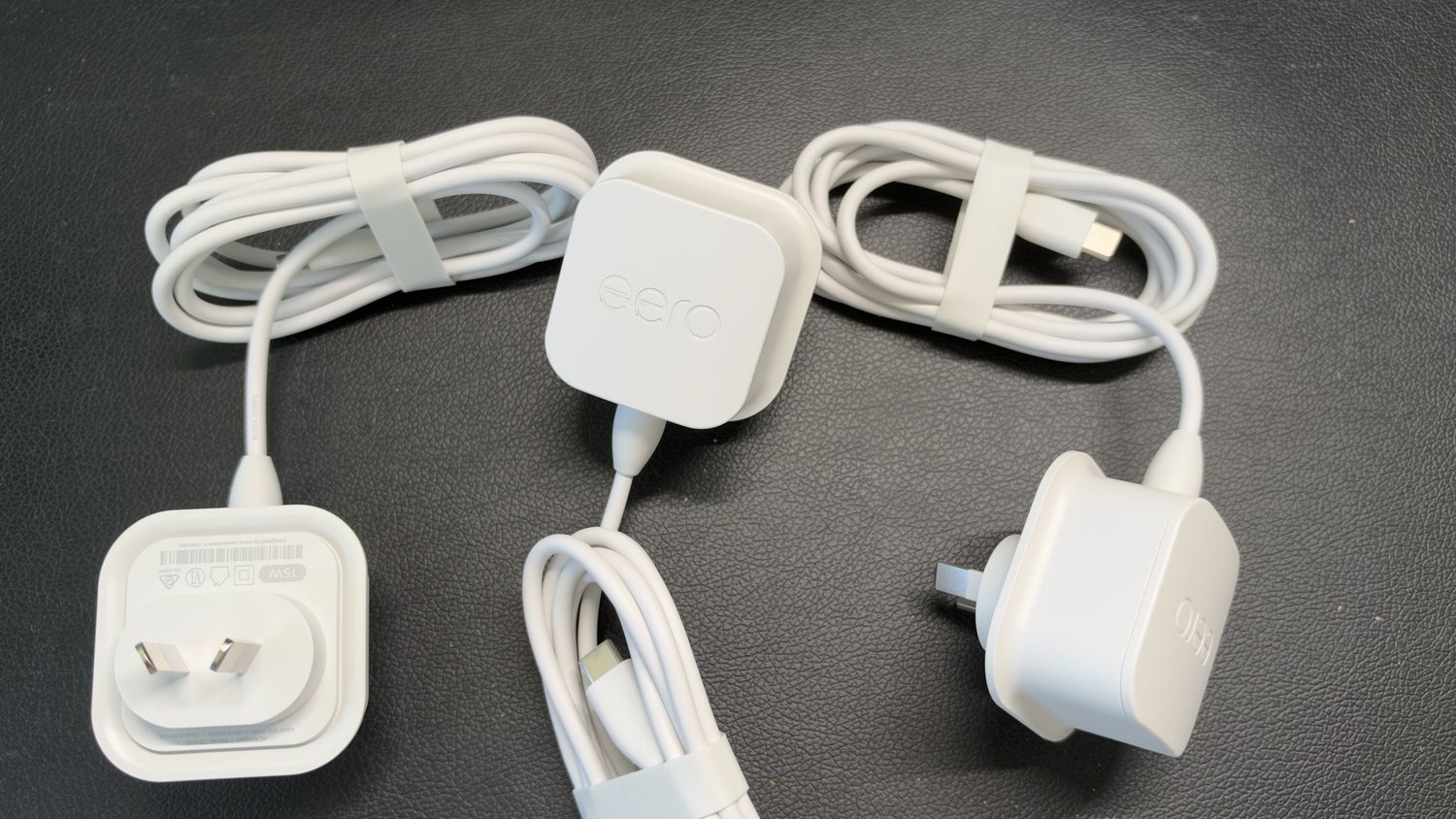
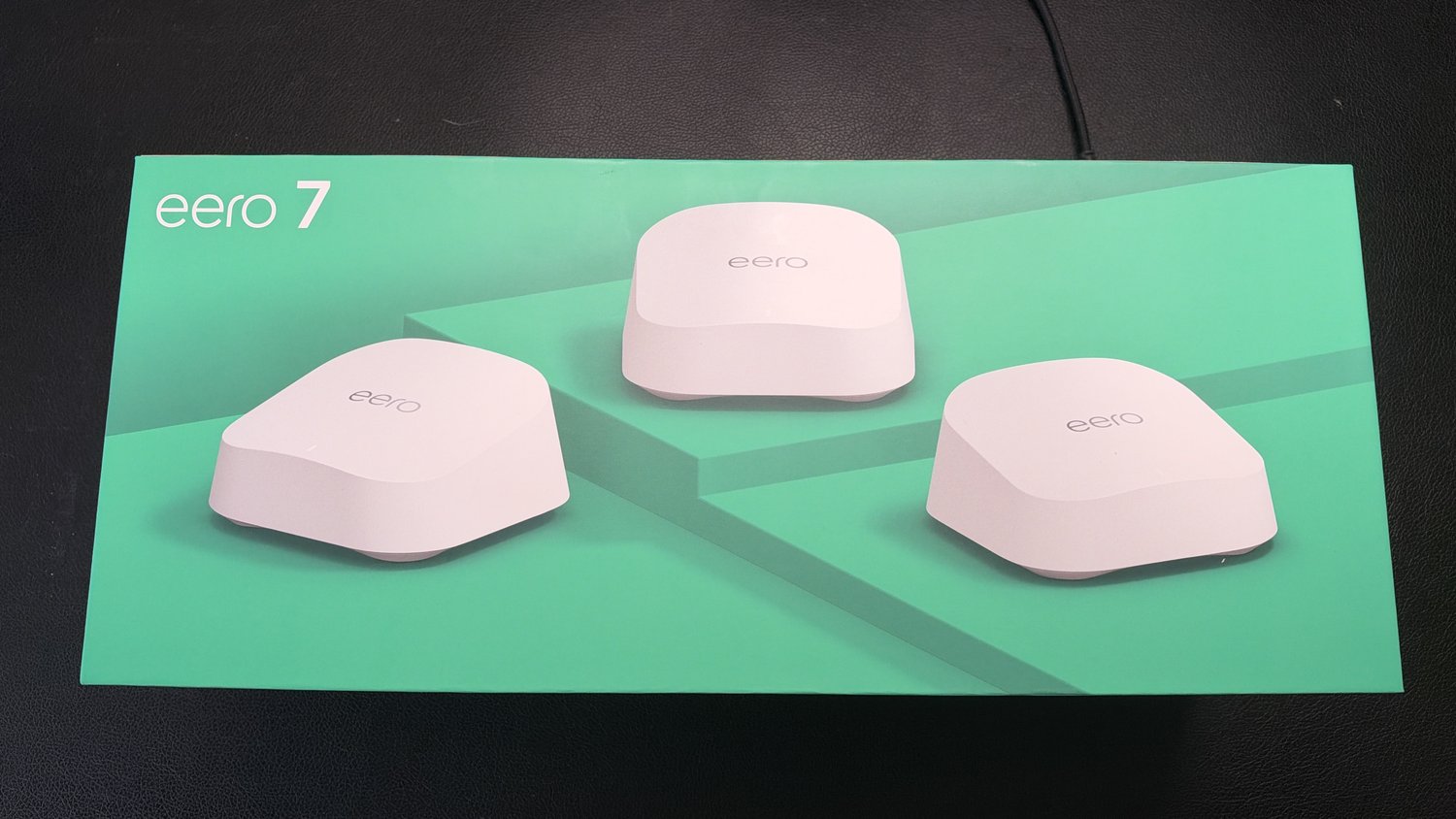
Our box was the three-pack. Inside were three eero 7 units, three USB-C power adapters with Australian plugs (each rated 15 W), and one white Ethernet cable to connect the first eero to your modem or router. Everything is white and neatly packed, with the cables held by reusable straps.
First impressions in short
The eero 7 was easy to set up: about 20 minutes from creating an account to a working two-unit network, including a firmware update. The units are heavier than they look and feel premium. The app is clear and genuinely useful. Most importantly, after a week, video calls that used to blip have been flawless, and YouTube in the bedroom is much better.
Pros
- Easy set-up: about 20 minutes for two units, with the app guiding every step
- Premium build; the units feel solid and weighty
- Great app, with live data use per device
- Video calls went from blipping to flawless in our week of use
- YouTube in the bedroom is much smoother
- Bridge mode let us keep our existing router and Plex server set-up untouched
Cons
- You need an eero account with your name, mobile number and email to set it up
- No 6 GHz band, unlike pricier Wi-Fi 7 systems
- Some controls sit behind an eero Plus subscription, and the app nudges you towards linking your Amazon account
Set-up: about 20 minutes for two units
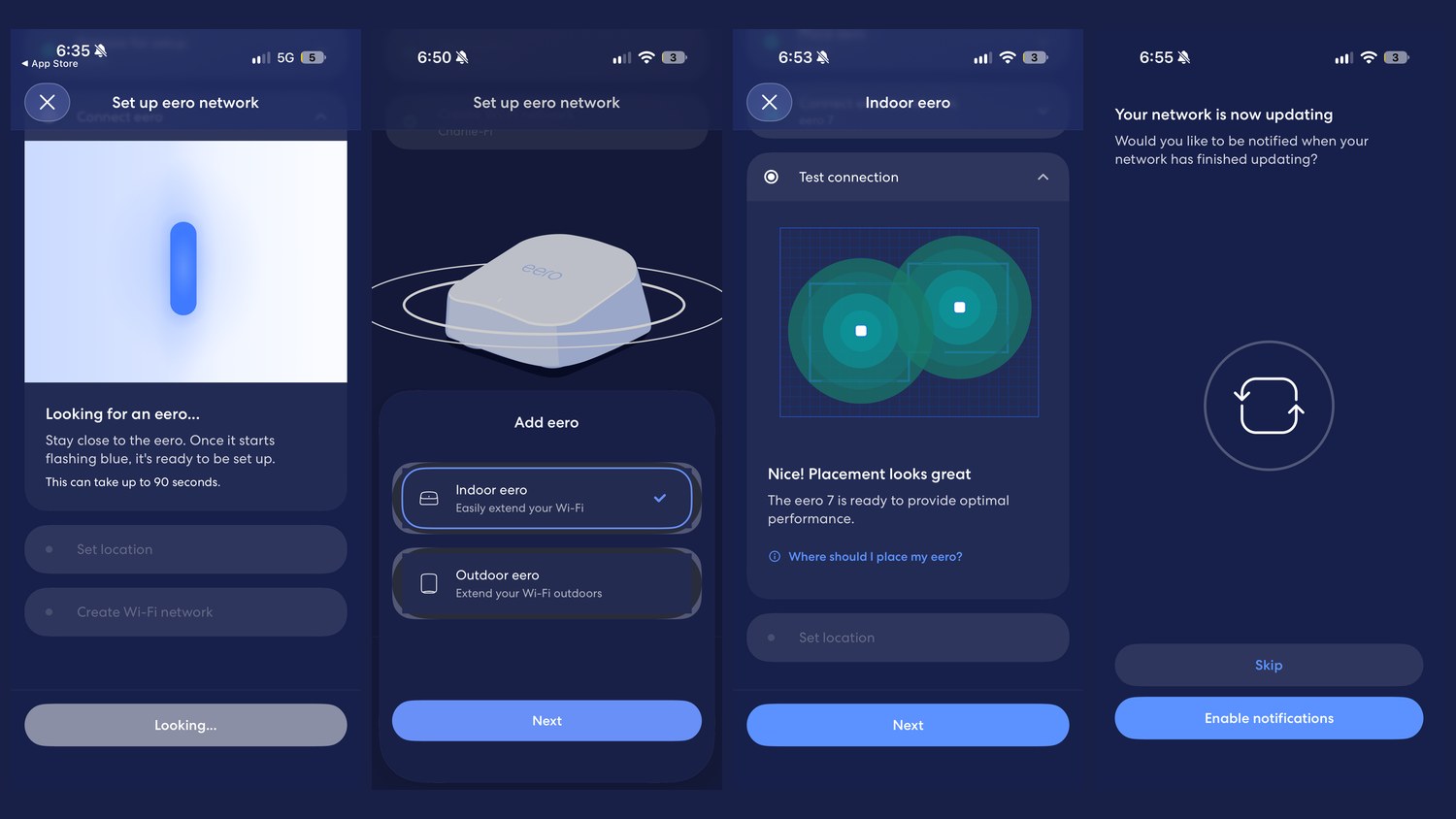
Set-up happens entirely in the eero app. You create an eero account first, which asks for your name, mobile number and email address. Then the app uses Bluetooth to find the first eero; once its light flashes blue it’s ready.
From there it’s a guided checklist: connect the eero, choose which room it’s in, and create the Wi-Fi network. We reused our old network name, Charlie-Fi, so our devices found it without being set up again. Adding the second eero was the same short process, and the app checked the placement and told us it looked great. It then updated the firmware on both units by itself.
Our screenshots put the whole thing at about 20 minutes, from the account screen at 6:34 pm to the firmware update starting at 6:55 pm, and every device was back online by 7:06 pm.
Why we used bridge mode
We run a Plex media server at home, and it depends on our existing router’s settings. Rather than move all of that to the eero and update the server’s address, we put the eero 7 in bridge mode. In bridge mode the eero handles the Wi-Fi while our old router keeps handing out addresses, so the Plex server carried on exactly as before, with nothing to change.
It’s worth knowing the trade-off. eero says some of its own features don’t work in bridge mode, including profiles and eero Plus features such as advanced security, ad blocking and content filters. If you don’t need to keep your old router’s settings, letting the eero run everything gives you the full feature set.
Build and design
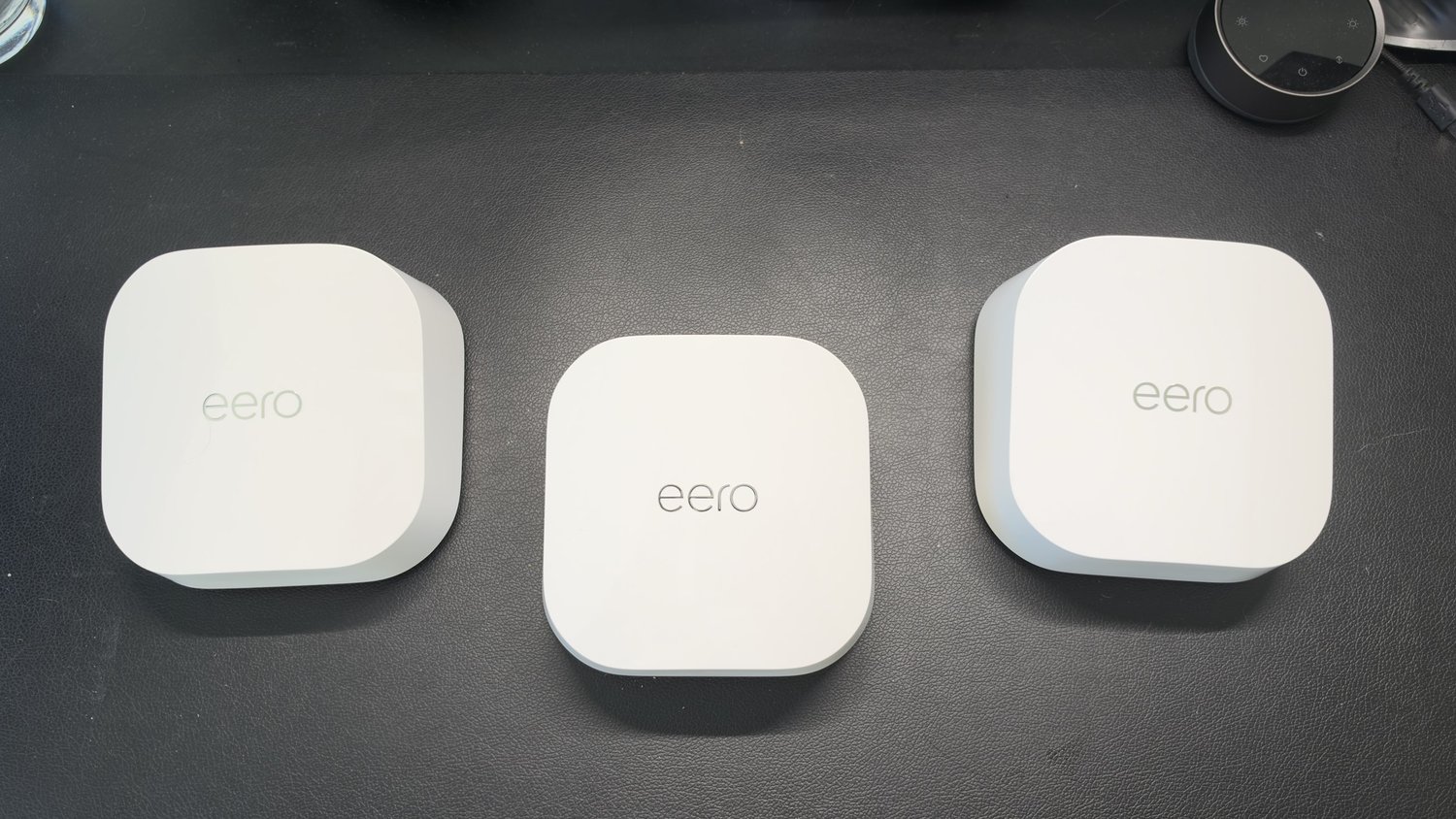
The eero 7 units are small, rounded squares in white plastic, with a status light on the front. They look tidy on a shelf or sideboard. They’re also heavier than you’d expect for their size, which makes them feel solid and premium rather than cheap.
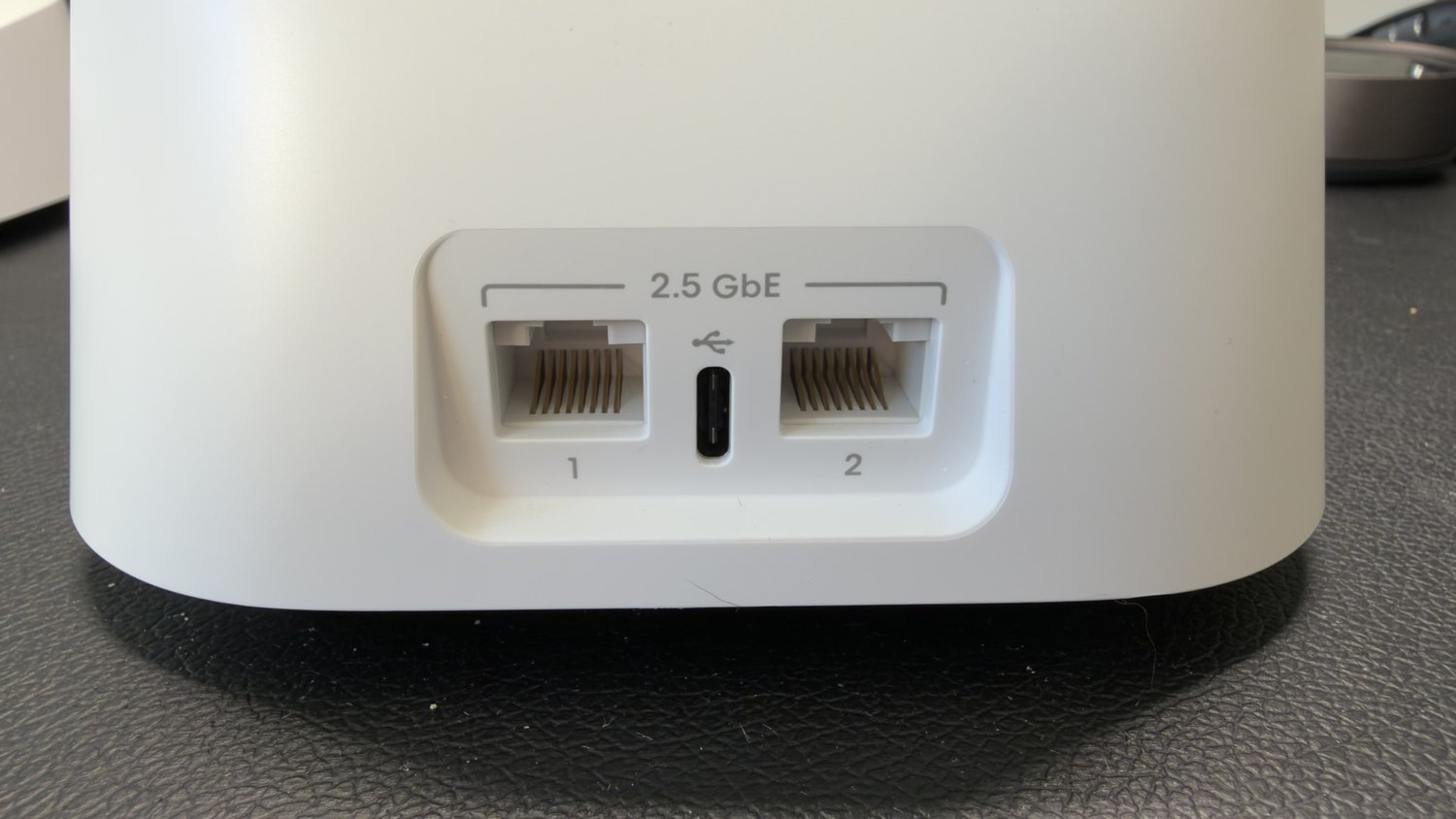
On the back of each unit are two 2.5 GbE Ethernet ports, numbered 1 and 2, with the USB-C power port between them. On the main eero, one port connects to your modem or router, leaving one free for a computer, console or a wired link to another eero.
The app
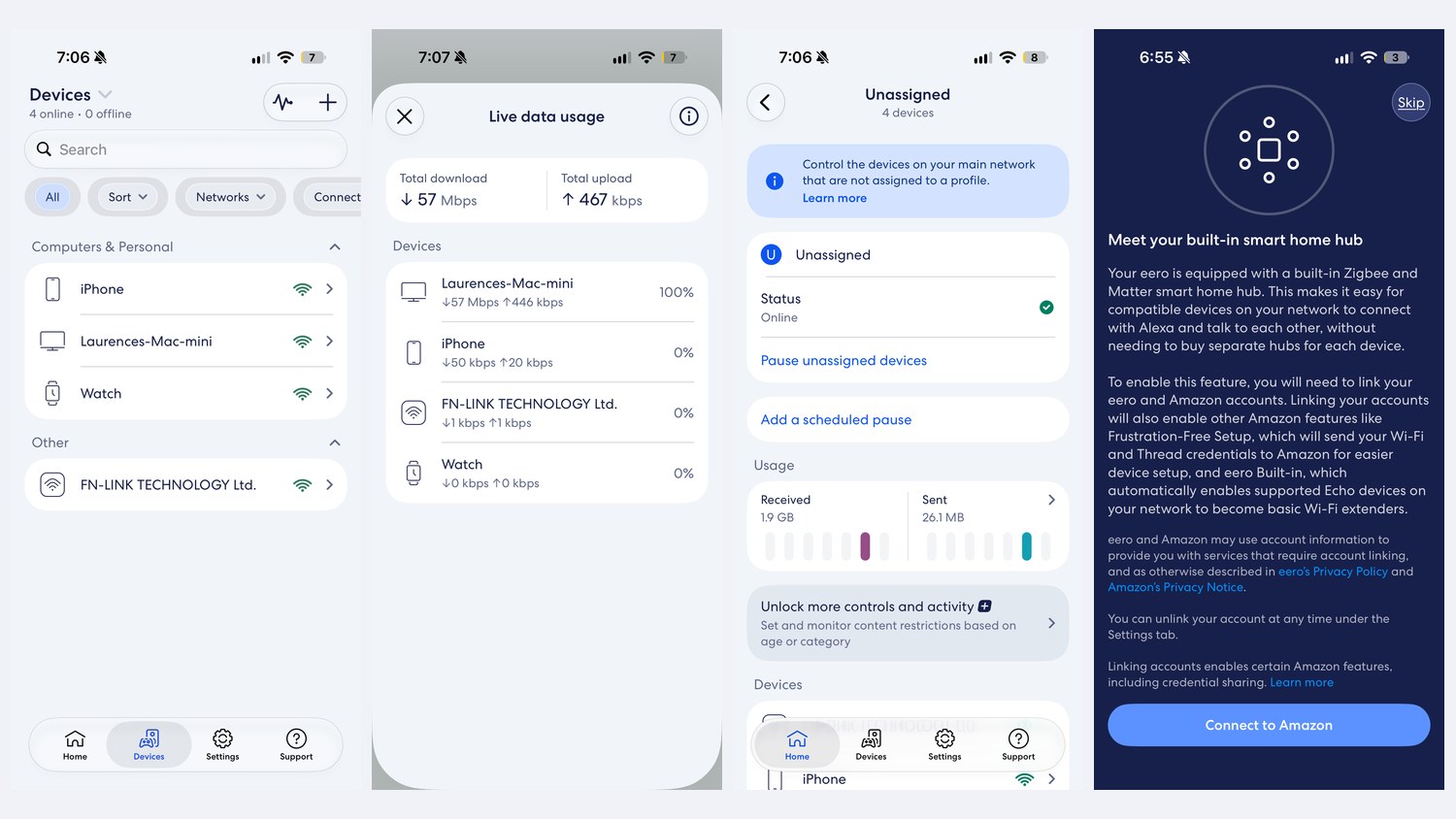
The eero app is a big part of the appeal. The Devices screen lists everything on the network and which eero it’s connected to. A live data usage screen shows how much each device is downloading and uploading right now, which is handy when the internet suddenly feels slow and you want to know who’s hogging it. You can set up a guest network, and pause devices or set a scheduled pause.
There are two things to know. Some controls, such as content restrictions by age or category, need a paid eero Plus subscription, and the app shows where those are. The app also offers to link your Amazon account to turn on the eero’s built-in Zigbee and Matter smart home hub. That’s optional, and you can skip it.
A week of use: coverage, not speed
The eero 7 is about coverage more than speed. It won’t make a fast connection faster near the router, but it spreads that speed more evenly through the house.
This is what a mesh system is for, and it delivered. With our old router, we’d get blips on video calls. Since switching to the eero 7, calls have been flawless all week. YouTube in the bedroom has been much better too.
The eero 7 won’t make our internet plan any faster: our plan is the limit, not the Wi-Fi. What the eero fixes is how evenly that speed reaches the rest of the house. Here are the speed tests we’ve run so far.
| Test | Device and network | Download | Upload | Latency |
|---|---|---|---|---|
| Sun 22 Nov, 6:17 pm (one run) | iPhone, eero 7 | 47.3 Mbps | 20.6 Mbps | 13 ms |
| Sun 22 Nov, 6:34 pm (one run) | iPhone, old router’s Wi-Fi | 49.9 Mbps | 20.4 Mbps | 12 ms |
| Sun 22 Nov, 6:54 pm (one run) | iPhone in the bedroom, on the furthest eero 7 | 52.3 Mbps | 19.9 Mbps | 24 ms |
| Sun 22 Nov, 6:57 pm (one run) | iPhone in the bedroom, old router’s Wi-Fi | 52.2 Mbps | 20.7 Mbps | 16 ms |
All four tests used the same iPhone and Google’s speed test. Speed is very similar everywhere: near the router the two networks were within a few megabits, and even in the bedroom, on the furthest eero, the phone got 52.3 Mbps down, essentially the same as the old router managed there (52.2 Mbps). Our plan is the ceiling, and both networks reach it in a single test. (The bedroom latency figures came from different test servers, Sydney and Melbourne, so we wouldn’t read anything into that gap.)
So the eero 7 isn’t about extra speed for us; it’s about coverage and consistency. A one-off speed test won’t catch a call that freezes for a second, but that’s where we noticed the change: in a week on the eero, video calls have been flawless and YouTube in the bedroom has been much smoother.ed, and in the room where calls used to blip and YouTube struggled, we now get the full speed our plan allows.
Coverage: what other reviewers found
We’ve only had it for a week, so here’s what longer tests in Australia found. Reviews.org tested one, two and three eero 7 units in an apartment on an NBN 100/20 FTTC connection. With one unit, the kitchen and laundry fell back to the slower 2.4 GHz band; with two, it said its whole home had good or excellent 5 GHz signal. A third unit fixed a garage spot that two couldn’t reach. It rated the eero 7 4.5 out of 5. (Reviews.org)
WhistleOut found one unit almost covered its apartment in fast 5 GHz Wi-Fi, two gave full 5 GHz coverage indoors and at most outdoor test spots, and three made the signal stronger again. It called the eero 7 the best entry-level Wi-Fi 7 router it had tested. (WhistleOut)
eero rates each unit for up to about 186 square metres (2,000 square feet) and more than 120 devices. TechRadar’s verdict was that it’s no speed demon but good for reaching dead spots in larger homes. (TechRadar)
Specs
| Amazon eero 7 | |
|---|---|
| Wi-Fi | Wi-Fi 7, dual band (2.4 GHz and 5 GHz), no 6 GHz |
| Wireless speed | Up to 1.8 Gbps (eero) |
| Ethernet | Two 2.5 GbE ports per unit |
| Power | USB-C, 15 W adapter with Australian plug |
| In the box (three-pack) | Three units, three power adapters, one Ethernet cable |
| Coverage | Up to about 186 m² per unit (eero) |
| Devices | 120+ (eero) |
| Smart home | Built-in Zigbee and Matter hub |
| Modem | None; on FTTN or FTTC you keep a modem in front of it |
Figures marked eero are from eero, not our own measurements.
Price and where to buy
The eero 7 launched in Australia at A$299.99 for one unit and A$649.99 for a three-pack, and it’s sold at Amazon Australia, JB Hi-Fi and other retailers. It’s often discounted, so check current prices before you buy.
How it compares
eero Pro 7: Adds the 6 GHz band and faster 5 GbE ports, for very fast plans. It’s our pick for plans up to 5 Gbps in our guide to the best Wi-Fi routers.
eero 6+: The older Wi-Fi 6 model, also in our best Wi-Fi routers guide, as our pick for expanding an existing eero network. The eero 7 adds Wi-Fi 7 and 2.5 GbE ports.
Should you buy it?
On a week’s use, yes, if your Wi-Fi is fine near the router and patchy everywhere else. Buy it for coverage, not for extra speed. Set-up is easy, the units feel premium, the app is great, and it fixed the call blips and patchy bedroom streaming we had before. If you have a multi-gigabit plan or devices that can use 6 GHz, look at the eero Pro 7 instead. We’ll add room-by-room speed tests, latency results and a longer stability report after more use.